Good images make a blog post easier to read and easier to share. The problem is that many creators either pay for stock photos or copy pictures they are not allowed to use. Free AI-generated images are a practical middle path, as long as you use them carefully. This guide walks through the whole process.
1. Pick an image that matches the message
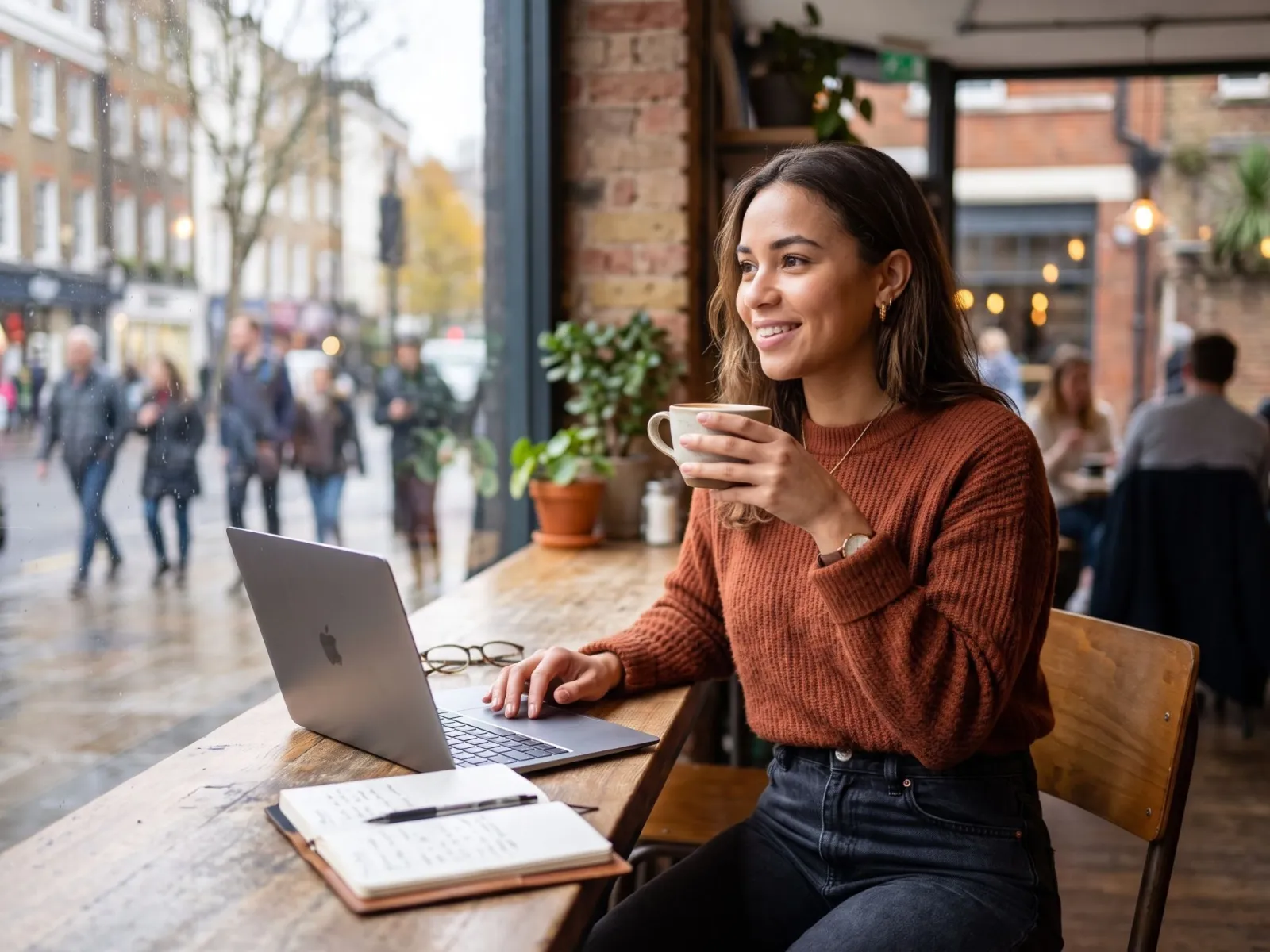
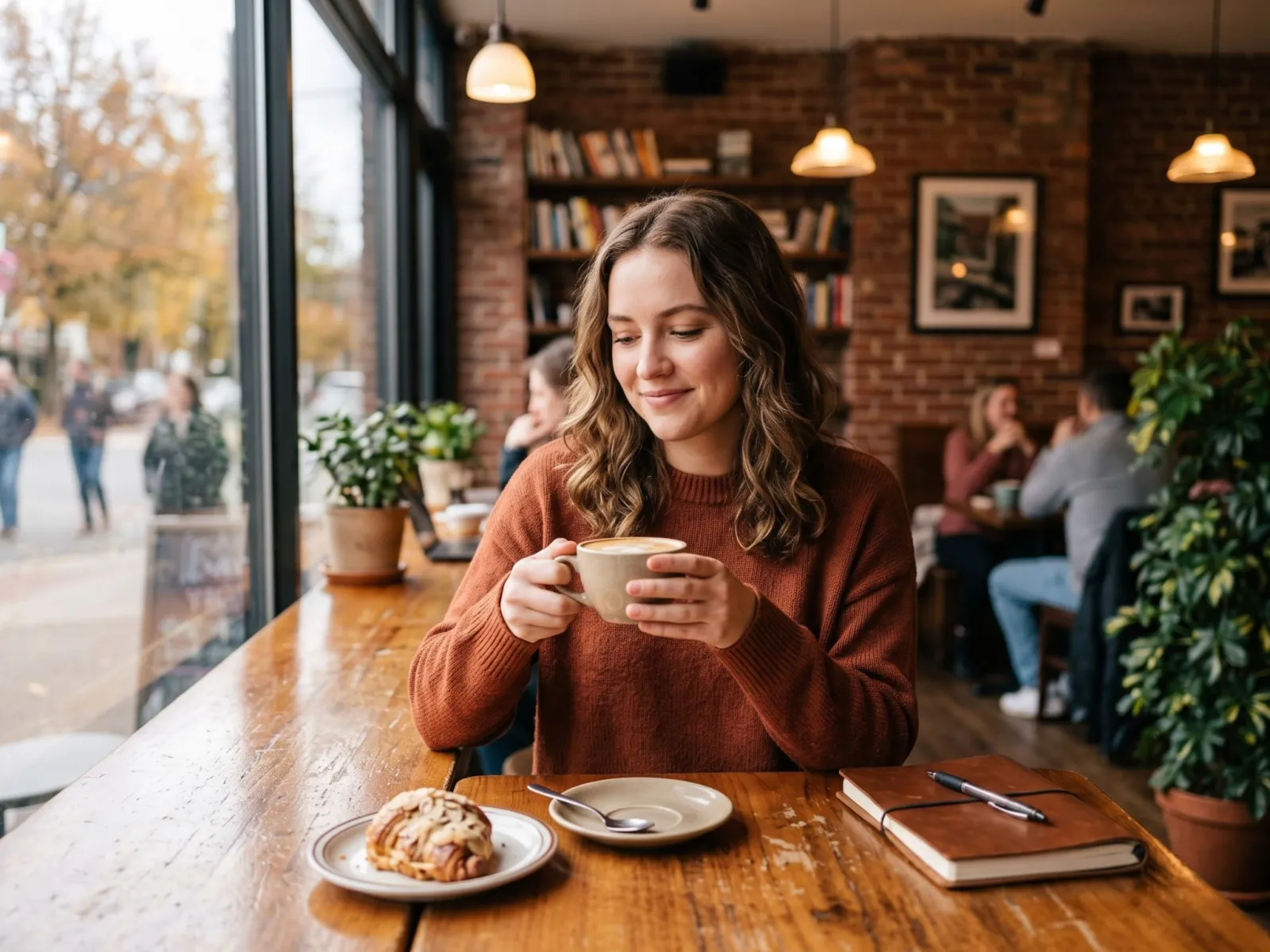
Start with what the article is about, not with what looks pretty. A post about remote work needs a laptop-and-coffee scene, not a random landscape. Browse a matching business image category or a topic collection such as cafe and coffee images and choose one image that supports your headline.
2. Check the license first
Every site has its own rules. On Pixvora the images are free for personal and commercial use without attribution, but you cannot resell the unedited files as your own stock library. Read the license page once so you know the limits.
3. Download the right size
Do not upload a huge original if your blog only shows the image at 800 pixels wide. On each image page, open the download window and pick a preset such as YouTube Thumbnail or Instagram Post, or enter a custom width and height. Smaller files make your page load faster, which helps both readers and search rankings.
4. Add alt text that describes the picture
Alt text is a short description of what the image shows. It helps people who use screen readers and it helps search engines understand the picture. Write it like you would describe the image to a friend on the phone, for example "woman working on a laptop at a cafe table". Avoid stuffing keywords.
5. Be honest that the image is AI-generated
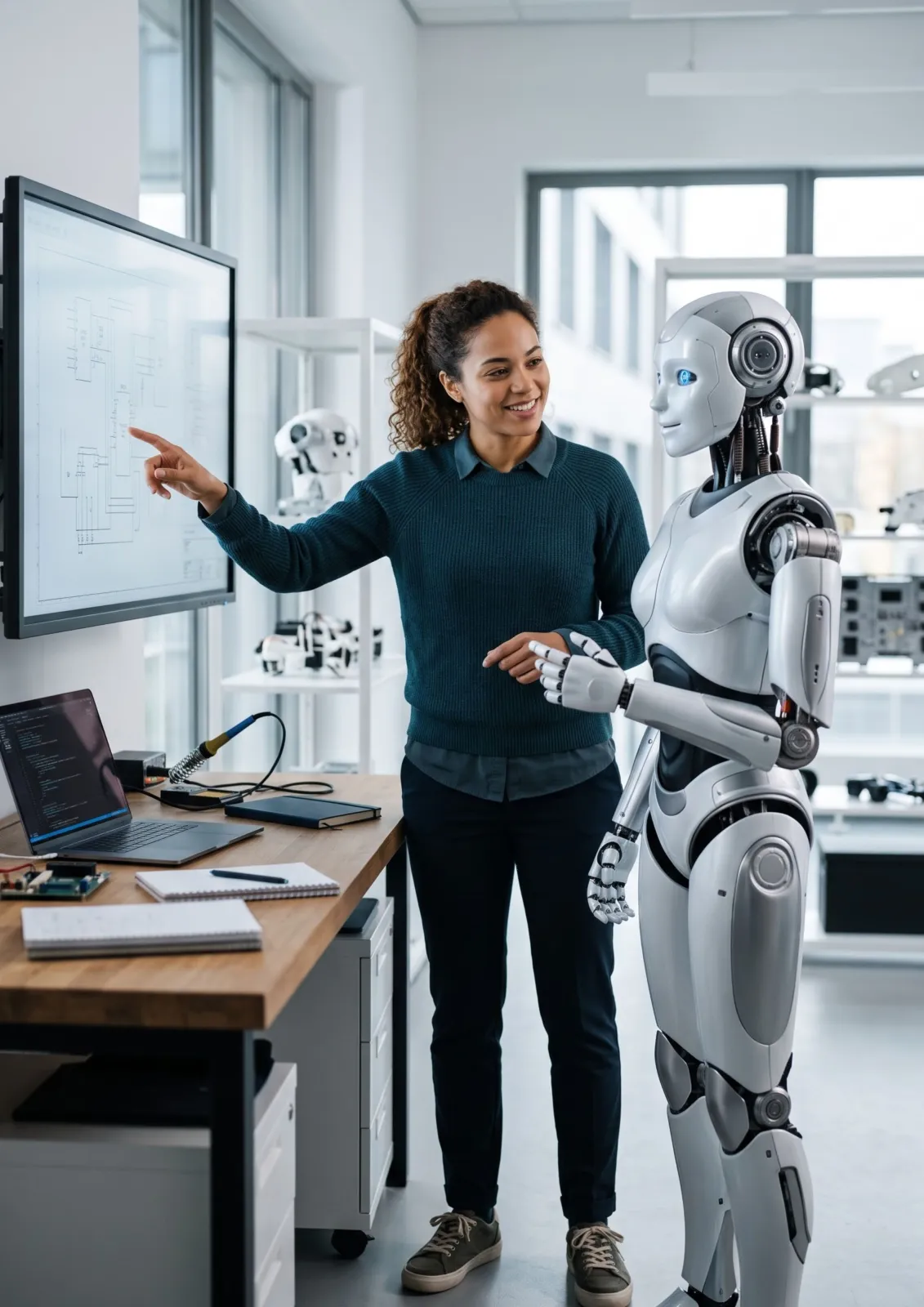
The people and places in AI images are not real. Use them as illustrations, not as proof. Do not present an AI-generated person as a real customer, a real employee or a real testimonial. If your industry expects disclosure, add a short line such as "Images generated with AI".
6. Give each image a purpose
One strong image at the top of the post is better than five random ones. Use extra images only when they explain something, break up a long section or show a step.
Quick checklist
- The image matches the topic of the article
- You read the license
- The file is resized and compressed
- Alt text describes the image
- You did not present AI people as real people
Ready to start? Browse the full list of image categories and download your first image.